

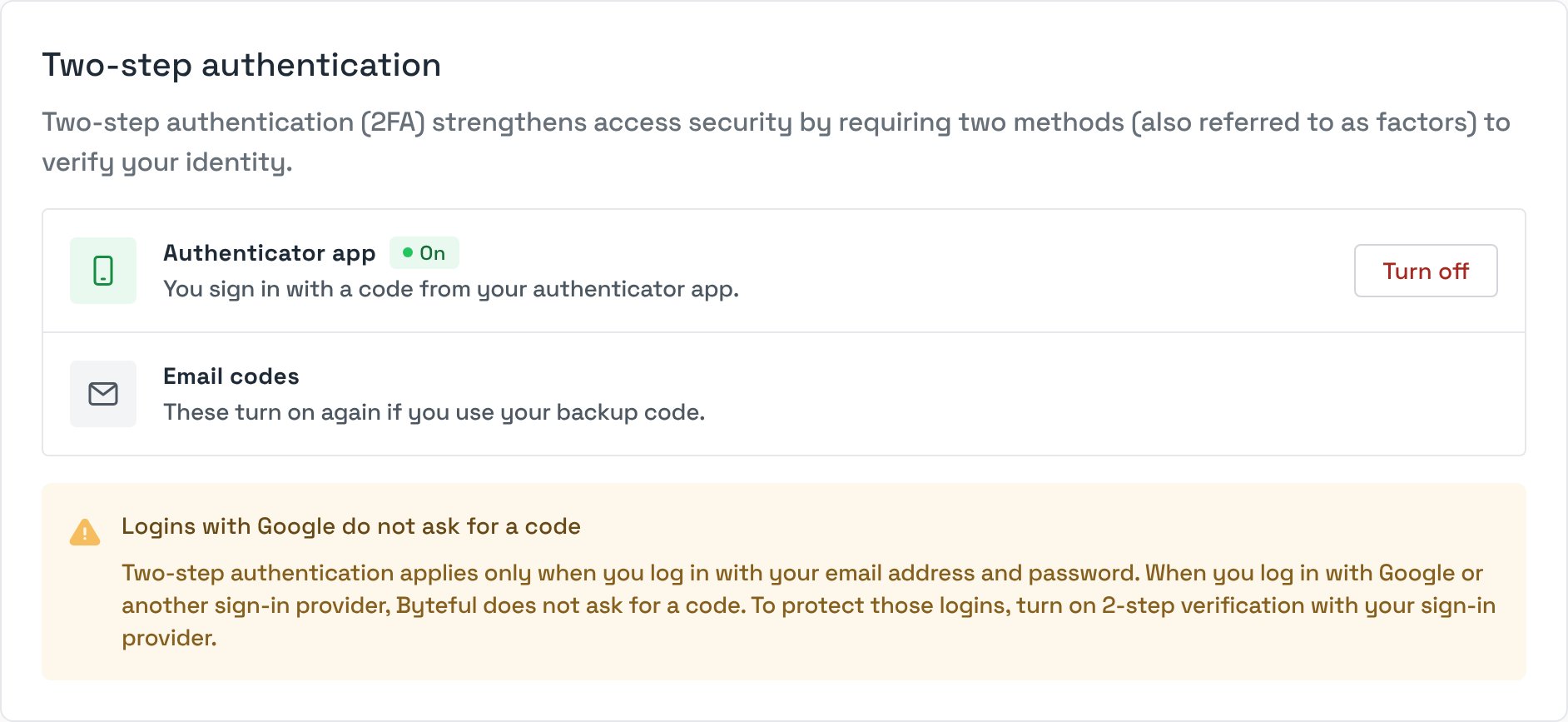
You manage 2FA on the Security tab of User settings, in the Two-step authentication card.
To open it:
- Open the workspace switcher popup at the bottom of the sidebar.
- Click User settings.
- Click the Security tab.
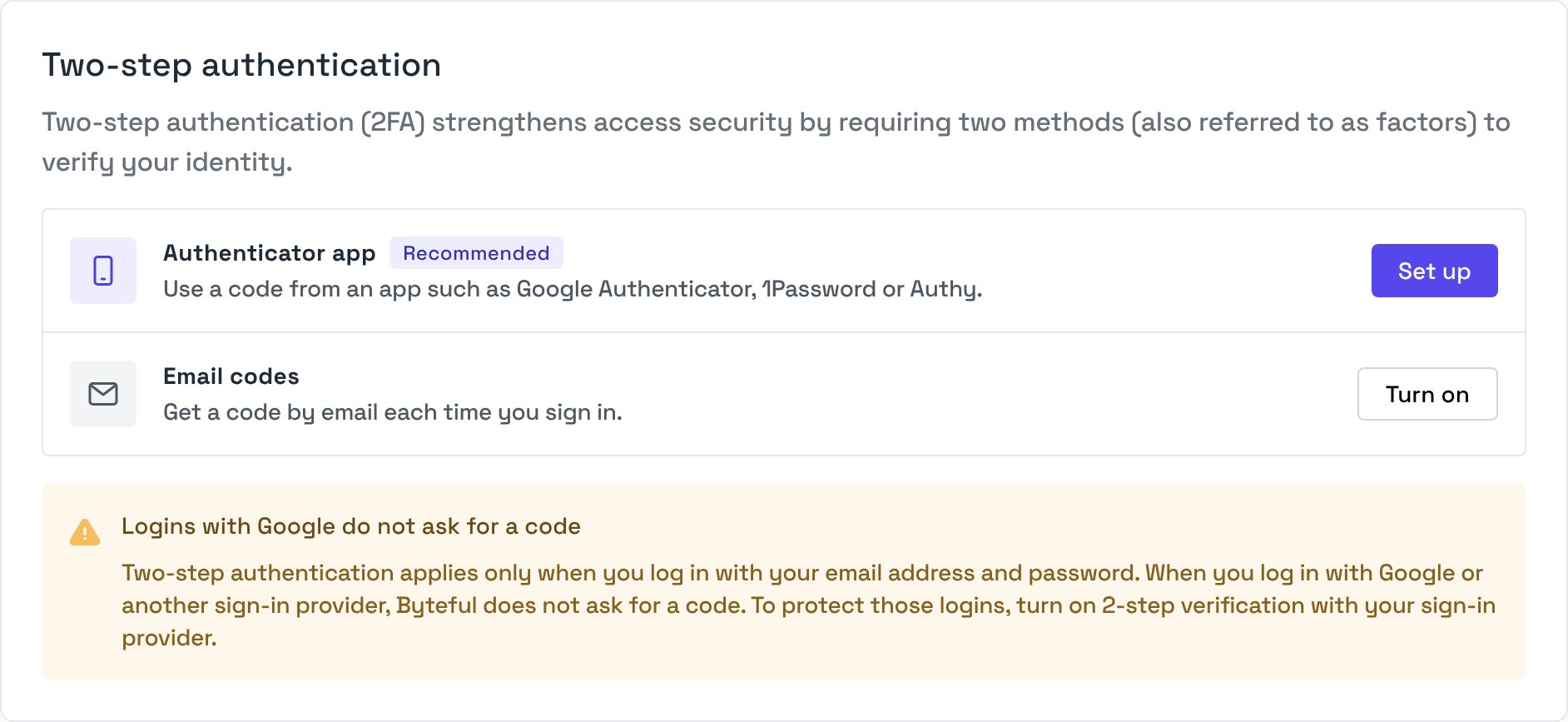
Setting Up an Authenticator App
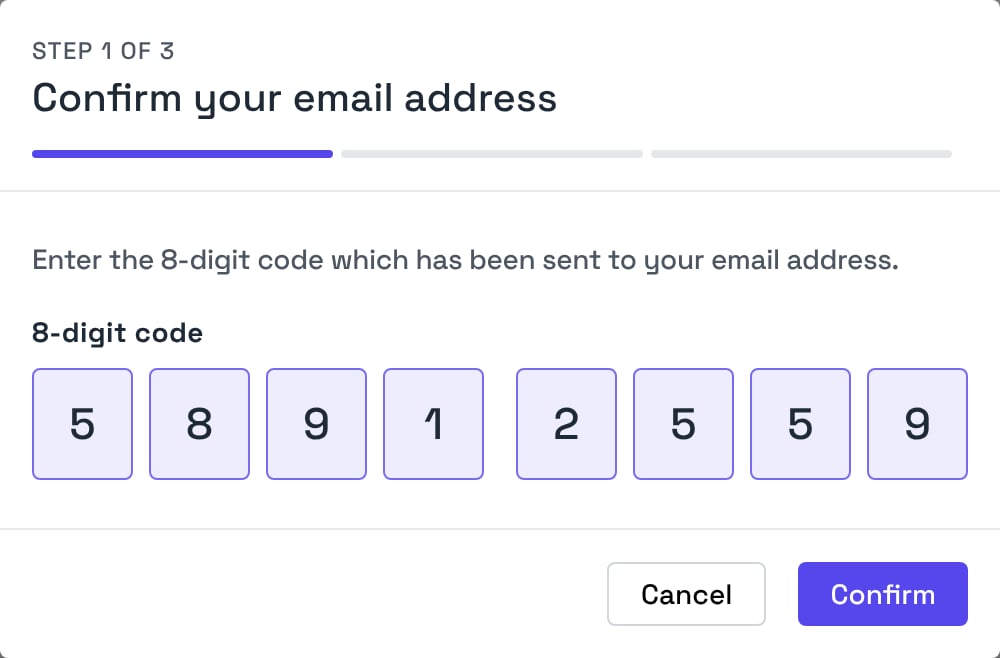
Setup has three steps. Keep your phone near you before you start.Step 1: Confirm your email address
- In the Authenticator app row, click Set up.
- Click Send code. We send an 8-digit code to your email address.
- Enter the code, then click Confirm.
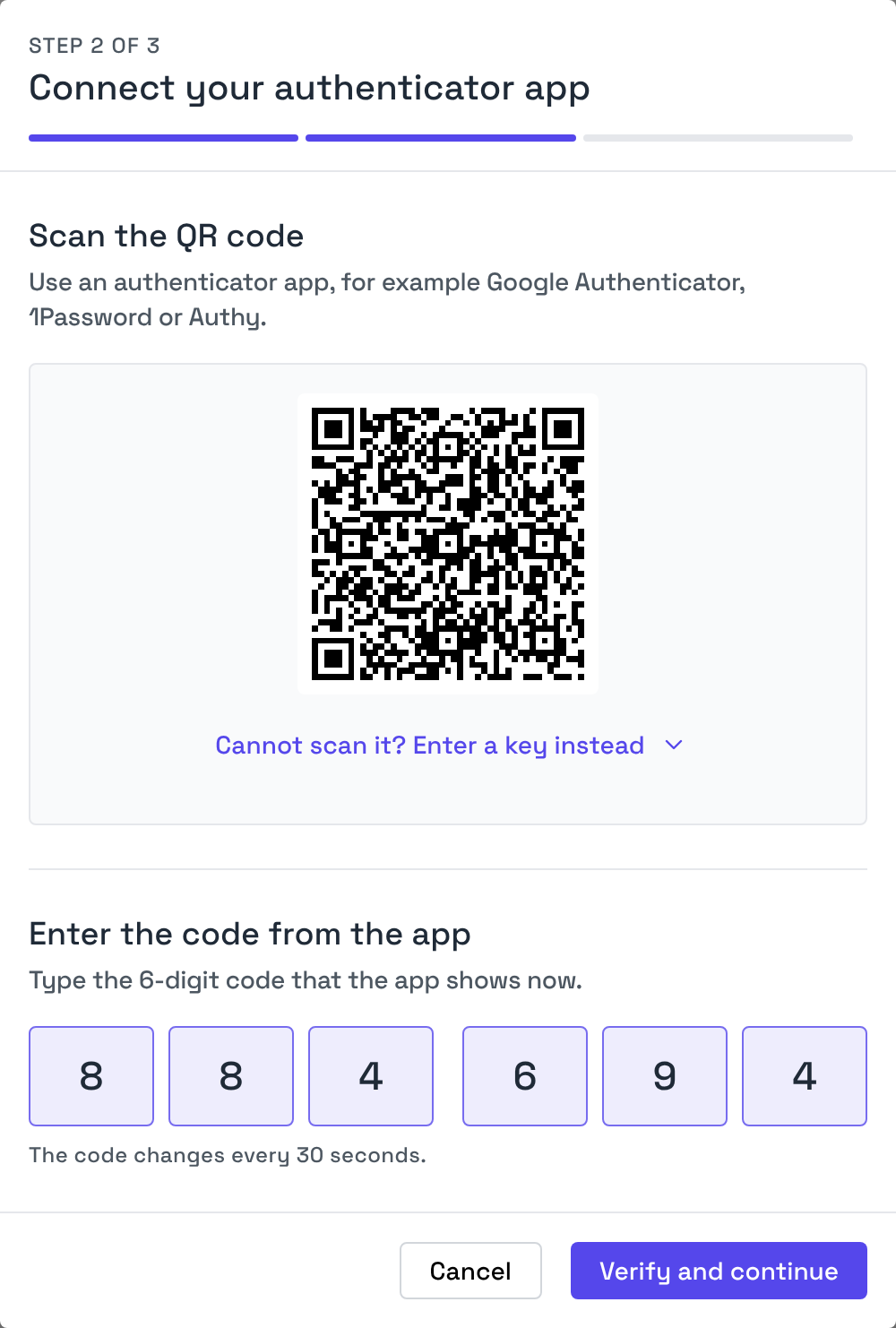
Step 2: Connect your authenticator app
- Open your authenticator app and add a new account.
- Scan the QR code in the dashboard.
- Enter the 6-digit code that the app shows, then click Verify and continue.
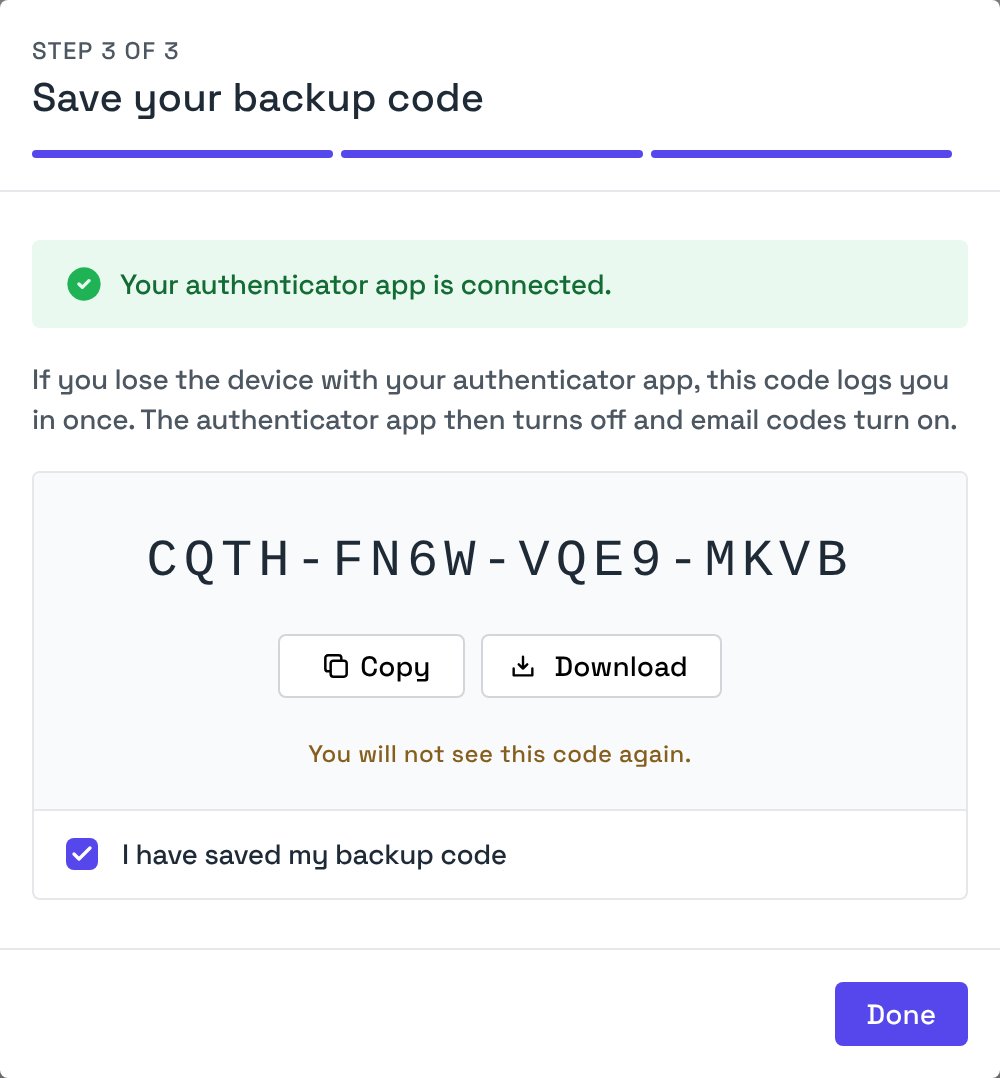
Step 3: Save your backup code
Your authenticator app is now on. The dashboard shows a backup code. If you lose the device with your authenticator app, the backup code lets you log in once.- Click Copy or Download, and keep the code in a safe place, for example your password manager.
- Select I have saved my backup code.
- Click Done.
Turning On Email Codes
- In the Email codes row, click Turn on.
- We send an 8-digit code to your email address. Enter the code, then click Confirm.
Logging In With 2FA
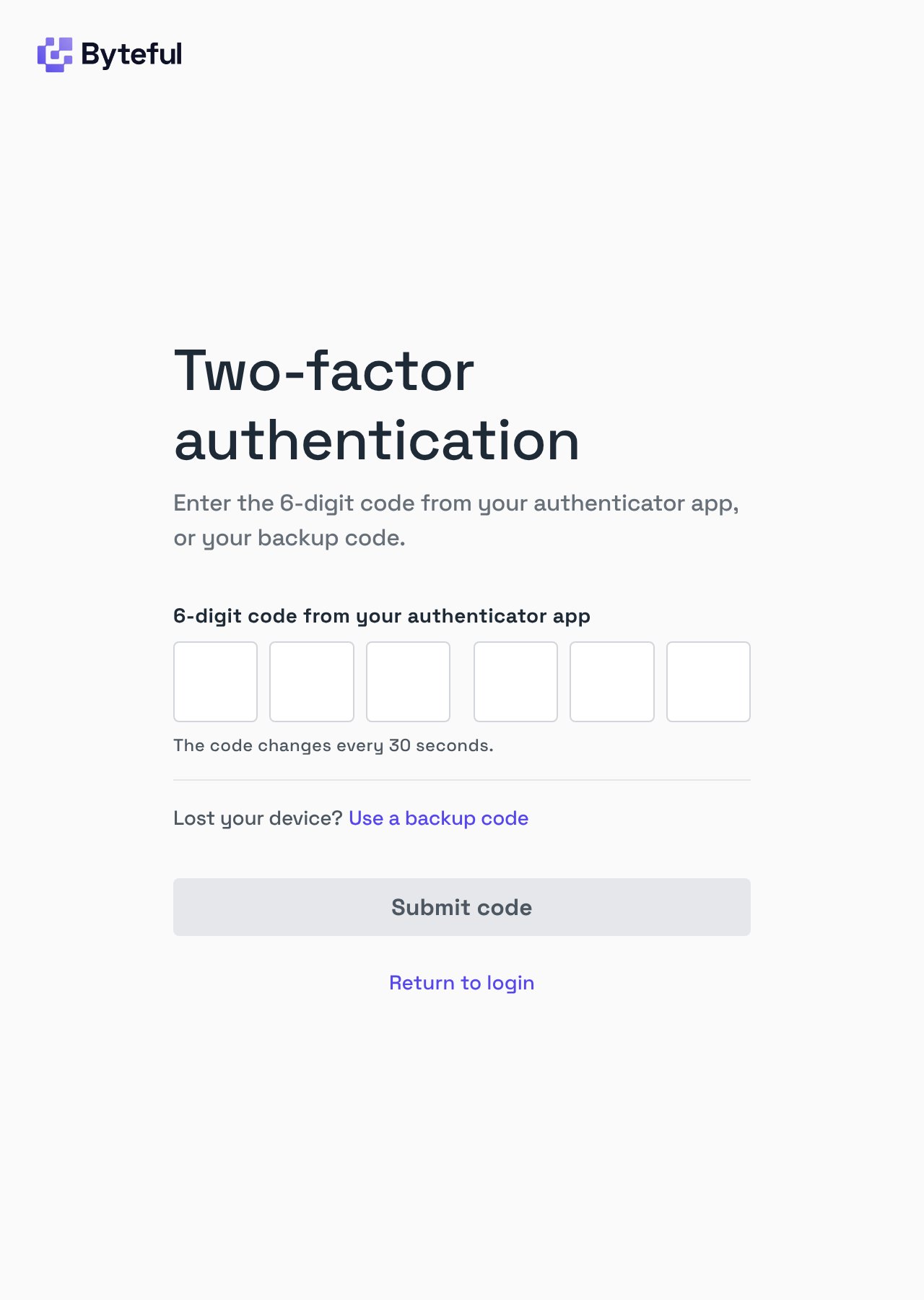
Byteful asks for a code only when you log in with your email address and password. A login with Google does not ask for a code.- Enter your email address and password as usual.
- Enter the code from your authenticator app, or from the email that we send.
- Click Submit code.
If You Lose Your Device
- On the code page, click Lost your device? Use a backup code.
- Enter your backup code, then click Submit code.
Confirming Changes With 2FA
Some changes, for example a new password, ask for a 2FA code. When you use an authenticator app, choose Authenticator app or Backup code at the top of the dialog, then enter the code.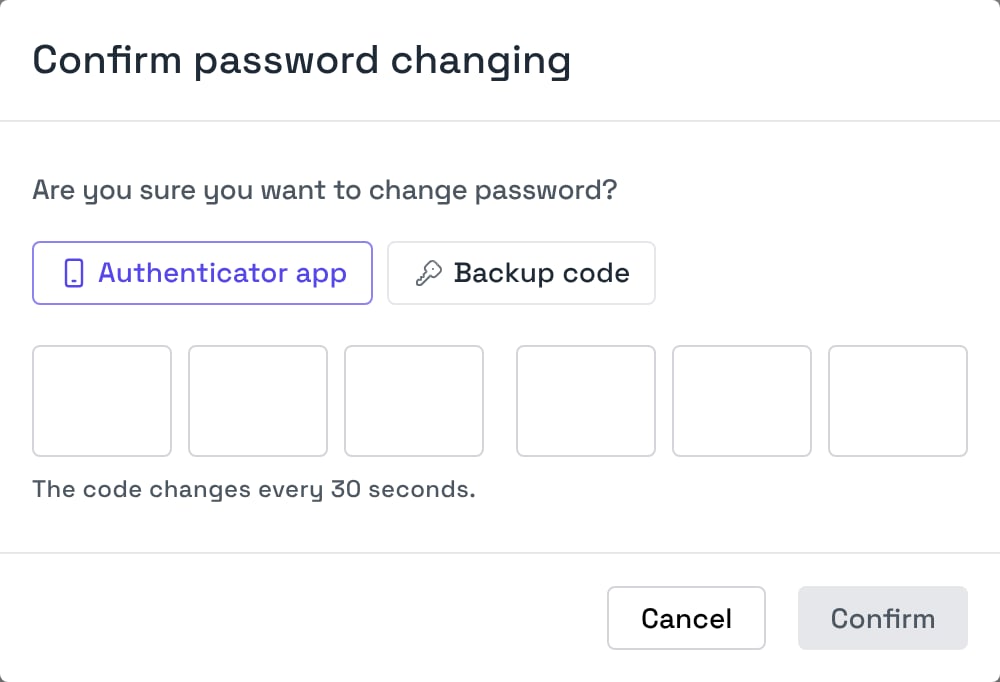
Turning Off 2FA
- In the row of the method that is on, click Turn off.
- Click Disable.
- Enter a code to confirm the change.
An organization can require 2FA from its members. If you turn off 2FA, you cannot log in to those organizations until you turn it on again. See Requiring Two-factor Authentication.