

- Make sure that you are in the organization workspace.
- Open the workspace switcher popup at the bottom of the sidebar and click Organization settings.
- Click the Team management tab.
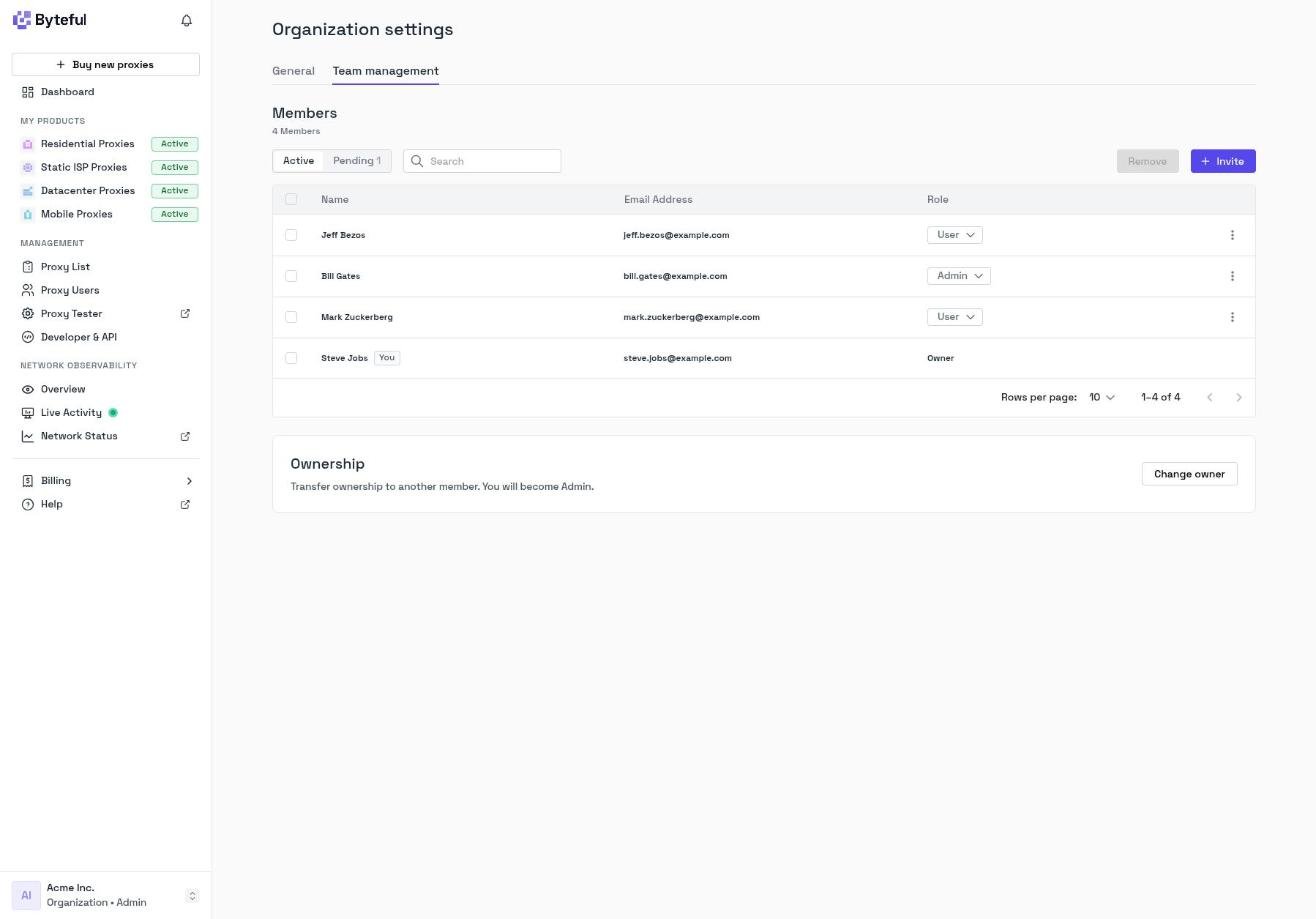
Roles
Every member of an organization has one role.Inviting a Member
- On the Team management tab, click + Invite.
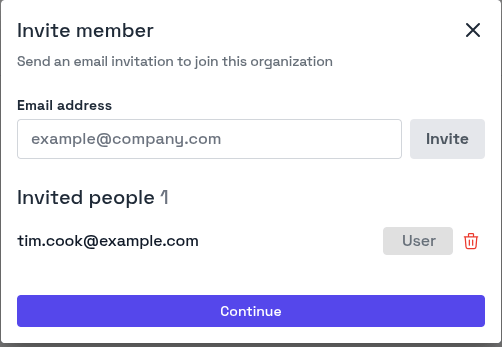
- Enter the email address of the person that you want to invite, then click Invite. Do this again for each person.
- Click Continue to send the invitations.
Accepting an Invitation
The invited person clicks the link in the email.- If they already have a Byteful account, they sign in and accept the invitation.
- If they do not have a Byteful account, they sign up with the invited email address. The invitation is accepted when they sign up.
Pending Invitations
To see the invitations that are not accepted yet, click Pending on the Team management tab.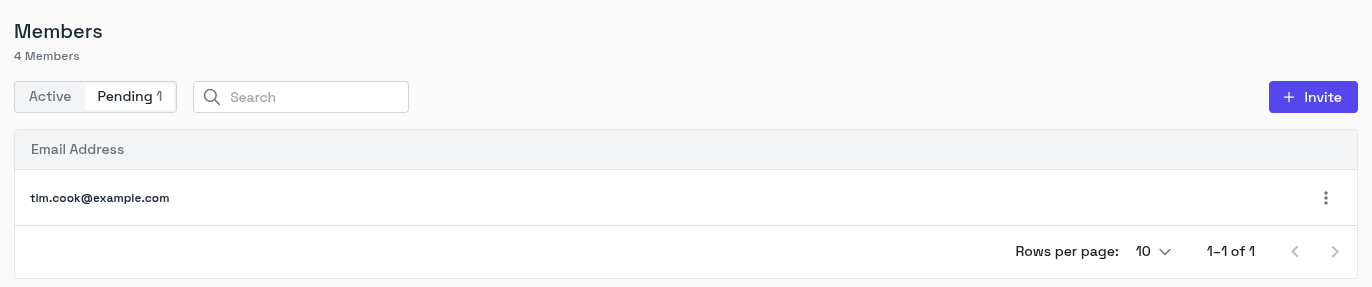
Changing a Member’s Role
- In the Members table, find the member.
- Click the role dropdown in the Role column.
- Select Admin or User.

- You cannot change the role of the owner. To make another member the owner, see Transferring Ownership.
- You cannot change your own role.
- Any Admin can change a User to an Admin.
- Only the owner can change the role of an Admin.
Removing a Member
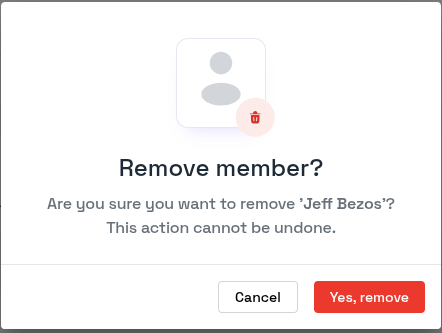
- In the Members table, click the ⋮ menu on the member’s row.
- Click Remove.
- Click Yes, remove.
Transferring Ownership
Only the owner can transfer ownership.- On the Team management tab, find the Ownership section below the members table.
- Click Change owner.
- In New owner, select the member.
- Click Confirm transfer.
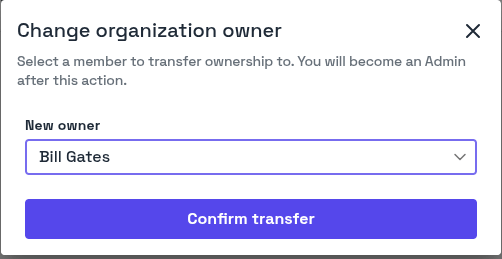
- The new owner has the Owner role.
- You become an Admin.
- All members are signed out and must sign in again.
Leaving an Organization
Members who are not the owner can leave an organization.- Switch to the organization that you want to leave.
- Open the workspace switcher and click User settings.
- On the General tab, click Leave organization.
- Click Yes, leave.