> ## Documentation Index
> Fetch the complete documentation index at: https://documentation.byteful.com/llms.txt
> Use this file to discover all available pages before exploring further.
# Requiring Two-factor Authentication
> Learn how to make two-factor authentication (2FA) mandatory for every member of your organization
An organization can require two-factor authentication (2FA) from every member. A member without 2FA cannot log in to the organization until they turn it on. Members can use an authenticator app or email codes.
Owners and Admins can change this setting.
## Before You Start
Turn on 2FA for your own account first. Byteful does not let you require 2FA while your own account has none. See [Two-factor Authentication (2FA)](/general/two-factor-authentication).
## Turning On the Requirement
1. Make sure that you are in the organization workspace.
2. Open the workspace switcher popup at the bottom of the sidebar and click **Organization settings**.
3. On the **General** tab, find the **Security** card.
4. Turn on **Require two-step authentication**.
 The requirement applies at the next login of each member. To turn it off, turn off the same switch.
## What Members See
A member without 2FA can still log in to Byteful and use their personal workspace. When they choose your organization on the **Choose workspace** page, the organization card shows **Requires 2FA** and a notice.
The requirement applies at the next login of each member. To turn it off, turn off the same switch.
## What Members See
A member without 2FA can still log in to Byteful and use their personal workspace. When they choose your organization on the **Choose workspace** page, the organization card shows **Requires 2FA** and a notice.
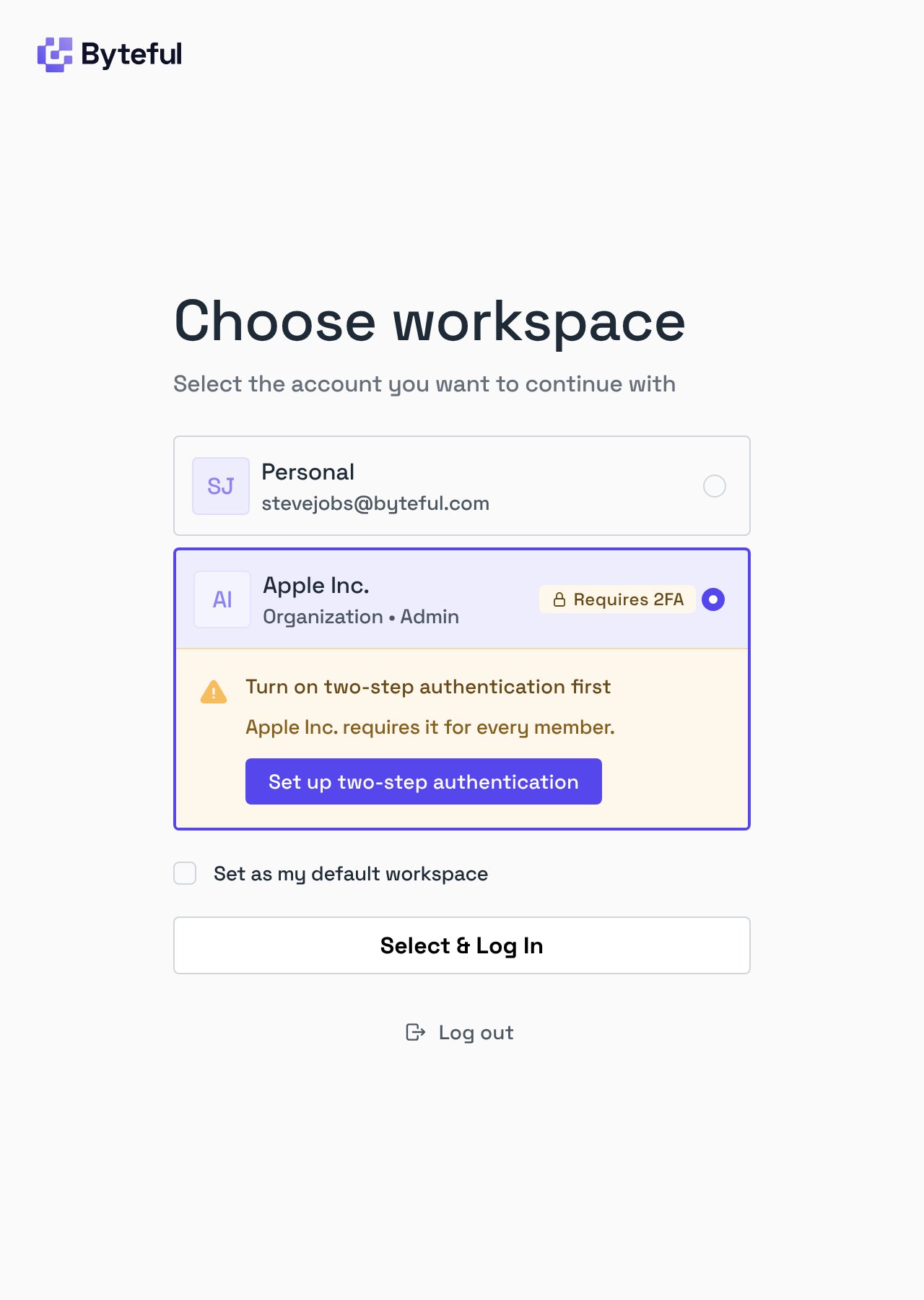 1. The member clicks **Set up two-step authentication**. Byteful opens their personal workspace on the **Security** tab.
2. The member turns on an authenticator app or email codes.
3. The member chooses your organization again, and logs in.
## Invitations
You can invite people who do not have 2FA. They can accept the invitation and become members. They log in to the organization after they turn on 2FA.
The requirement checks that a member has 2FA on in their account. This also applies to members who log in with Google.
This documentation is built and hosted on [Mintlify](https://mintlify.com), a developer documentation platform.
1. The member clicks **Set up two-step authentication**. Byteful opens their personal workspace on the **Security** tab.
2. The member turns on an authenticator app or email codes.
3. The member chooses your organization again, and logs in.
## Invitations
You can invite people who do not have 2FA. They can accept the invitation and become members. They log in to the organization after they turn on 2FA.
The requirement checks that a member has 2FA on in their account. This also applies to members who log in with Google.
This documentation is built and hosted on [Mintlify](https://mintlify.com), a developer documentation platform.