> ## Documentation Index
> Fetch the complete documentation index at: https://documentation.byteful.com/llms.txt
> Use this file to discover all available pages before exploring further.
# Managing Team Members
> Learn how to invite members to your organization, change their roles, remove them and transfer ownership
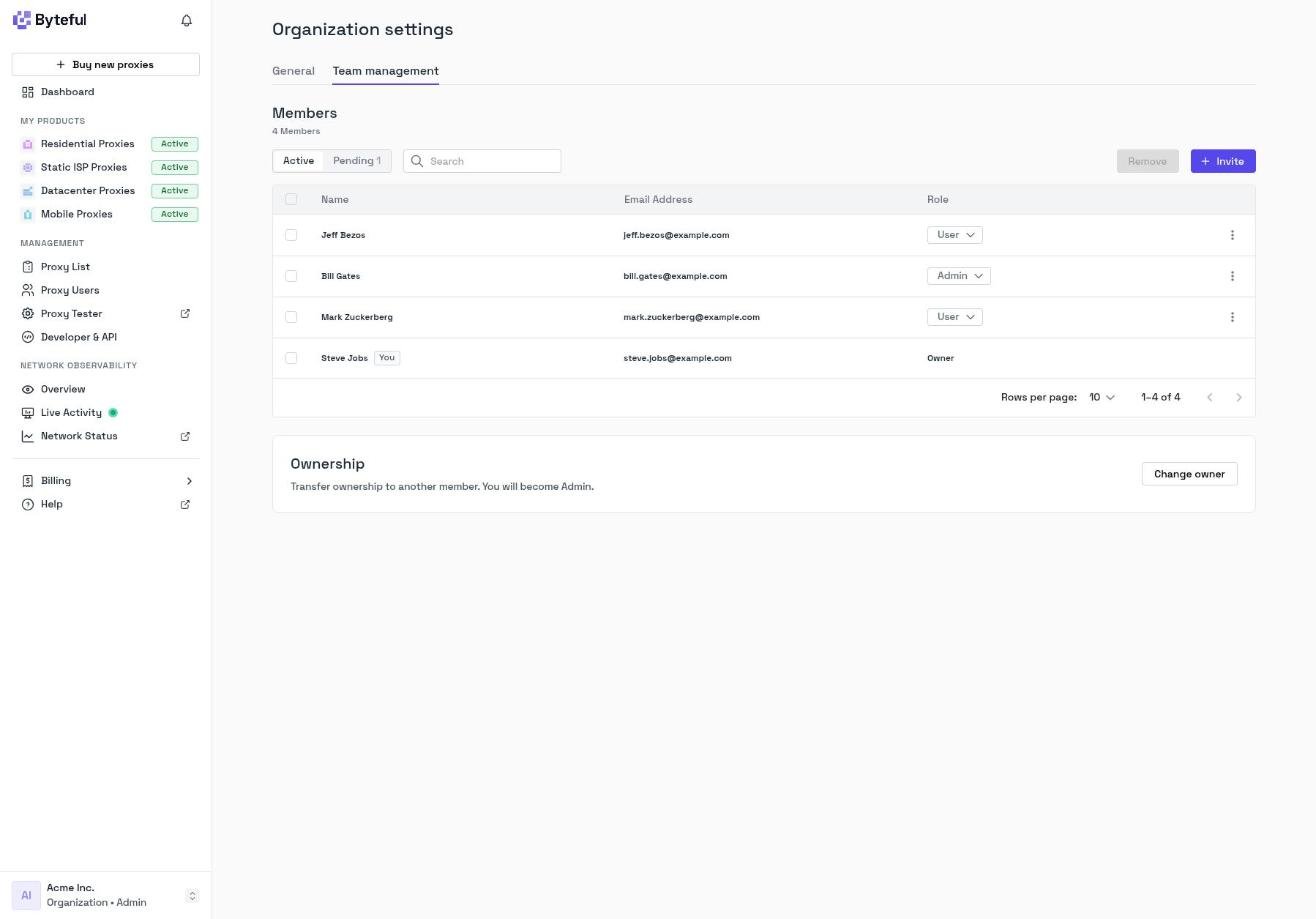
Admins manage the members of an organization in the **Team management** tab of **Organization settings**.
To open it:
1. Make sure that you are in the organization workspace.
2. Open the workspace switcher popup at the bottom of the sidebar and click **Organization settings**.
3. Click the **Team management** tab.
 ## Roles
Every member of an organization has one role.
| Role | What the member can do |
| - | - |
| **Owner** | Everything an Admin can do. The owner can also transfer ownership and change the role of other Admins. Each organization has one owner. |
| **Admin** | Use all services, proxies and billing. Edit the organization, invite and remove members, change roles, and manage API keys. |
| **User** | Use the services, proxies and billing of the organization. A User cannot access **Organization settings** or manage API keys. |
## Inviting a Member
1. On the **Team management** tab, click **+ Invite**.
2. Enter the email address of the person that you want to invite, then click **Invite**. Do this again for each person.
3. Click **Continue** to send the invitations.
## Roles
Every member of an organization has one role.
| Role | What the member can do |
| - | - |
| **Owner** | Everything an Admin can do. The owner can also transfer ownership and change the role of other Admins. Each organization has one owner. |
| **Admin** | Use all services, proxies and billing. Edit the organization, invite and remove members, change roles, and manage API keys. |
| **User** | Use the services, proxies and billing of the organization. A User cannot access **Organization settings** or manage API keys. |
## Inviting a Member
1. On the **Team management** tab, click **+ Invite**.
2. Enter the email address of the person that you want to invite, then click **Invite**. Do this again for each person.
3. Click **Continue** to send the invitations.
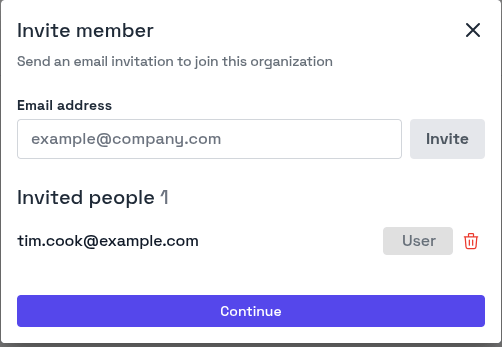 Each person gets an email invitation to join the organization. All invited members join as **User**. You can change their role after they join.
### Accepting an Invitation
The invited person clicks the link in the email.
* If they already have a Byteful account, they sign in and accept the invitation.
* If they do not have a Byteful account, they sign up with the invited email address. The invitation is accepted when they sign up.
They can also accept or decline an invitation in **User settings**, on the **Invitations** tab.
### Pending Invitations
To see the invitations that are not accepted yet, click **Pending** on the **Team management** tab.
Each person gets an email invitation to join the organization. All invited members join as **User**. You can change their role after they join.
### Accepting an Invitation
The invited person clicks the link in the email.
* If they already have a Byteful account, they sign in and accept the invitation.
* If they do not have a Byteful account, they sign up with the invited email address. The invitation is accepted when they sign up.
They can also accept or decline an invitation in **User settings**, on the **Invitations** tab.
### Pending Invitations
To see the invitations that are not accepted yet, click **Pending** on the **Team management** tab.
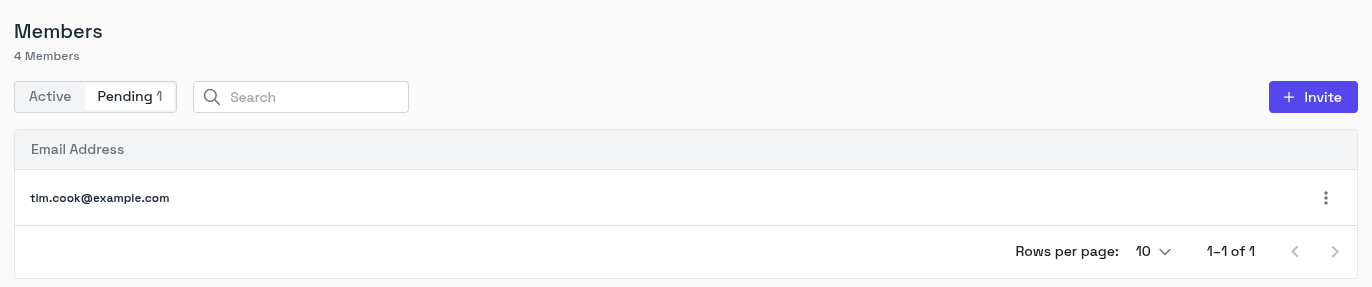 To cancel an invitation, click the **⋮** menu on its row, click **Remove**, then click **Yes, revoke**.
## Changing a Member's Role
1. In the **Members** table, find the member.
2. Click the role dropdown in the **Role** column.
3. Select **Admin** or **User**.
To cancel an invitation, click the **⋮** menu on its row, click **Remove**, then click **Yes, revoke**.
## Changing a Member's Role
1. In the **Members** table, find the member.
2. Click the role dropdown in the **Role** column.
3. Select **Admin** or **User**.
 The following rules apply:
* You cannot change the role of the owner. To make another member the owner, see [Transferring Ownership](#transferring-ownership).
* You cannot change your own role.
* Any Admin can change a User to an Admin.
* Only the owner can change the role of an Admin.
## Removing a Member
1. In the **Members** table, click the **⋮** menu on the member's row.
2. Click **Remove**.
3. Click **Yes, remove**.
The following rules apply:
* You cannot change the role of the owner. To make another member the owner, see [Transferring Ownership](#transferring-ownership).
* You cannot change your own role.
* Any Admin can change a User to an Admin.
* Only the owner can change the role of an Admin.
## Removing a Member
1. In the **Members** table, click the **⋮** menu on the member's row.
2. Click **Remove**.
3. Click **Yes, remove**.
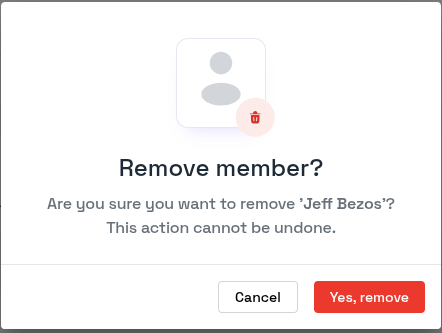 The member loses access to the organization immediately. This action cannot be undone. To give them access again, send a new invitation.
## Transferring Ownership
Only the owner can transfer ownership.
1. On the **Team management** tab, find the **Ownership** section below the members table.
2. Click **Change owner**.
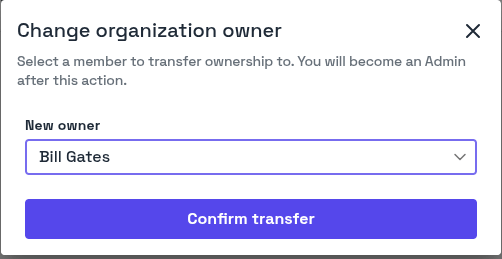
3. In **New owner**, select the member.
4. Click **Confirm transfer**.
The member loses access to the organization immediately. This action cannot be undone. To give them access again, send a new invitation.
## Transferring Ownership
Only the owner can transfer ownership.
1. On the **Team management** tab, find the **Ownership** section below the members table.
2. Click **Change owner**.
3. In **New owner**, select the member.
4. Click **Confirm transfer**.
 After the transfer:
* The new owner has the **Owner** role.
* You become an **Admin**.
* All members are signed out and must sign in again.
If the current owner has completed identity verification (KYC), the new owner must also complete it before the transfer.
## Leaving an Organization
Members who are not the owner can leave an organization.
1. Switch to the organization that you want to leave.
2. Open the workspace switcher and click **User settings**.
3. On the **General** tab, click **Leave organization**.
4. Click **Yes, leave**.
The owner cannot leave the organization. To leave, the owner must first transfer ownership to another member.
This documentation is built and hosted on [Mintlify](https://mintlify.com), a developer documentation platform.
After the transfer:
* The new owner has the **Owner** role.
* You become an **Admin**.
* All members are signed out and must sign in again.
If the current owner has completed identity verification (KYC), the new owner must also complete it before the transfer.
## Leaving an Organization
Members who are not the owner can leave an organization.
1. Switch to the organization that you want to leave.
2. Open the workspace switcher and click **User settings**.
3. On the **General** tab, click **Leave organization**.
4. Click **Yes, leave**.
The owner cannot leave the organization. To leave, the owner must first transfer ownership to another member.
This documentation is built and hosted on [Mintlify](https://mintlify.com), a developer documentation platform.